How to Make Color-Coded Lyrics Videos: A Step-by-Step Guide
Make a color-coded lyrics video: give each singer a color, tag every line, add romanization and translation, sync it to the song and export it for YouTube.
By the LyricFlow team·· 6 min read
Color-coded lyrics give every singer in a song their own color, so viewers can tell at a glance who is singing each line. The format grew up in K-pop fandoms, where groups often have five to thirteen members and line distribution is part of the fun, but it works just as well for duets, musical theatre, choirs and rap features.
This guide walks through the whole process: planning the colors, preparing the lyrics so every line knows its singer, syncing the timing, adding romanization and translation, and exporting a video that is ready for YouTube, Shorts, Reels or TikTok. The examples use LyricFlow's color-coded editor, but the planning steps apply to any tool.
What you need before you start
- The audio. An MP3, WAV or M4A of the song. Use a track you own or have permission to use (see lyric videos and copyright).
- The lyrics. The official lyrics, written one sung phrase per line. If the song is not in a Latin script, keep the original text: romanization and translation are added as separate layers later.
- The line distribution. Who sings which line. For a group song, the most reliable source is your own ears plus live performances, where the camera usually follows the person singing. Line-distribution videos made by other fans are a useful cross-check, but they disagree more often than you would expect, so listen for yourself on the parts that matter.
- Names, colors and (optionally) photos. One color per singer, and a square-ish photo of each if you want the photo layouts.
Step 1: Plan one color per singer
Pick the colors before you touch the lyrics. Two rules matter more than anything else:
- Every color must be easy to tell apart from every other color, including in a fast cut on a phone screen. Pink and magenta, or two blues, will be confused.
- Every color must be readable on your background. Pale yellow disappears on a white page; navy disappears on a dark one.
If the group has official member colors, fans will expect them. When two official colors are too close, shift one of them in lightness rather than hue so the member stays recognizable. Our guide to choosing colors for color-coded lyrics covers contrast and color-blind-friendly palettes in detail.
Step 2: Tag every line with its singer
The fastest way to assign lines is to write the singer's name at the start of each line, before you paste the lyrics. LyricFlow recognizes two styles of tag:
[Verse 1]
Mina: I've been waiting all night
Joon: Under the city lights
Mina & Joon: We run, we run
All: Don't let it fade away
[Mina] I've been waiting all night
[Joon] Under the city lightsA few details make tagging painless:
- Duets: join names with
&,+,/or a comma (Mina & Joon:). The line is shared by both singers. - Whole-group lines:
All:orEveryone:marks a line the whole group sings. - Tags must repeat to count. A name only becomes a tag when it tags several lines, so a lyric that genuinely starts with a word and a colon ("Baby: I love you") is left alone.
- Section labels such as
[Verse 1]or[Chorus]are not lyrics. They are kept out of the video and used to find sections later, for example to cut a chorus into a short clip.
When you paste tagged lyrics, the names are removed from the displayed text and each line is assigned to its singers automatically. Repeated choruses can copy the assignments of the first chorus, so you only tag them once.
Step 3: Add the song and the singers
Create a project, upload the song and add each singer with their name, color and photo. The order you add them is the order they appear in name bars and photo strips, so follow the group's official order if it has one.
On the Free plan you can color up to 3 singers in the basic Free styles and up to 7 in the Photo Lineup style, which also includes member photos for free. Pro colors up to 30 and unlocks photos in every layout.
Step 4: Sync the lyrics to the song
Timing is what makes color-coding work: the right color has to appear exactly when that person starts singing. Auto-sync listens to the audio and times every line for you, then highlights the lines it is less sure about. Check those first, plus three classic trouble spots:
- Fast rap verses, where lines are short and close together.
- Long held notes, where the end of a line can drift.
- Overlapping vocals, where one member sings under another.
Fix any line with tap-to-sync (play the song and press a key as the line starts) or by nudging its start and end. Our guide on how to sync lyrics to a song explains the techniques in more depth.
Step 5: Handle duets, group lines and ad-libs
Real songs are messier than one-singer-per-line, and the details are what fans notice:
- Duet lines belong to both singers. With Pro display options they can show both colors, for example as a gradient across the text.
- Group lines, sung by several members or the whole group, carry every singer so the line reads as shared rather than belonging to one person.
- Ad-libs, the parts in parentheses, often belong to a different singer than the main line. Give the ad-lib its own singer so
(oh yeah)appears in the right color.
Step 6: Add romanization and translation
For songs in Korean, Japanese or Chinese, international viewers usually want two extra lines under each lyric: a romanization they can sing along to and a translation they can understand. You choose which of the three lines is shown largest and how big each one is.
If you write these yourself, keep the line breaks identical to the original so each layer matches its lyric. Showing these layers in a color-coded video is part of Pro (or of a $1.99 Pro Export for a single project), and Pro can also draft Japanese and Korean romanization and translations for you to review. Always review drafts: machine translation misses wordplay and slang. Read more in adding romanization and translation to lyric videos.
Step 7: Choose a style and a format
Color-coded styles differ mostly in how they show who is singing: name chips next to the text, photo strips where the active singer lights up, member cards, or a clean page with only colored text. Here are a few of the styles in LyricFlow:

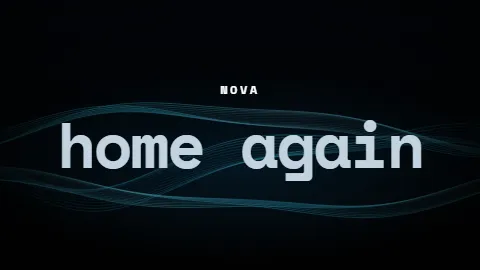

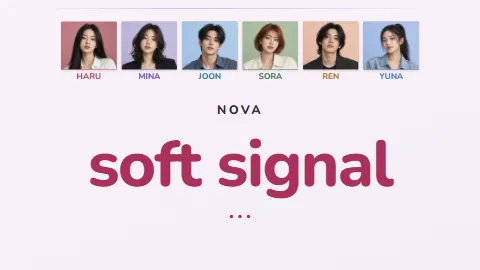




Pick the format for where the video will live: 16:9 for YouTube, 9:16 for Shorts, Reels and TikTok, or 1:1 for feed posts. Vertical videos have less room for long lines, so check the busiest verse before exporting.
Step 8: Export and check
Export an MP4 in 1080p (or up to 4K with Pro). The Free plan adds a small LyricFlow watermark; you can remove it for one project for $1.00, or go Pro to remove it everywhere. You can also download the timed lyrics as SRT or LRC.
Before publishing, watch the whole video once on a phone. It is the fastest way to catch a color that is too dark, a line that is too long, or a singer who comes in half a second late.
Common mistakes to avoid
- Colors that are too similar. If you have to think about which member it is, viewers will not bother.
- Ignoring the background. A color that works on a dark scene may fail on a bright photo. Test the brightest moment of your background.
- Lines that are too long. Split long lines at a natural breath. Long lines wrap, and a wrapped colored line is hard to read.
- Forgetting ad-libs and harmonies. They are small, but fans notice when the color is wrong.
- Skipping the final review. Automatic timing is a strong first pass, not a guarantee. Watch it once before you post.